Greedy Pig Analyzer Indicator
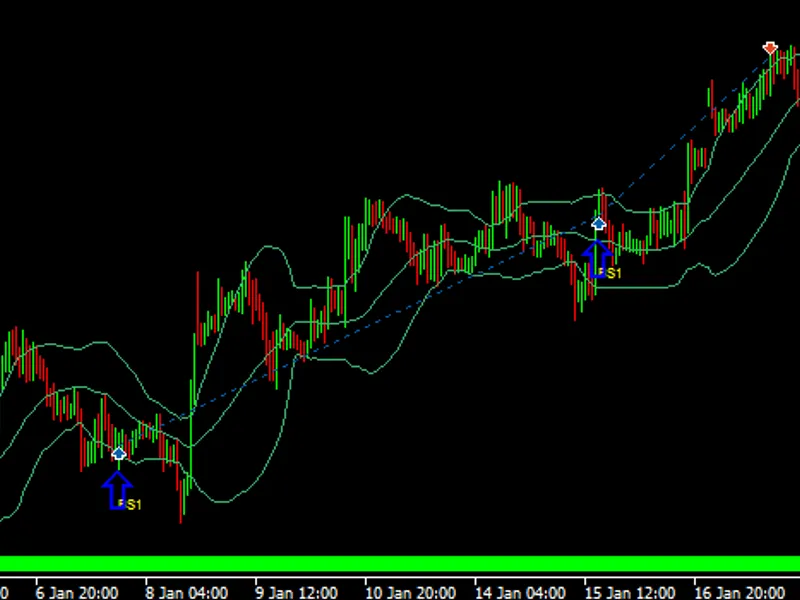
This tool for MetaTrader 4 is specifically engineered to streamline your trading operations. This technical indicator acts as a specialized analysis tool designed to visualize market data. It helps traders identify emerging trends, momentum shifts, and key support or resistance levels by plotting statistical calculations directly onto price charts.
How to Setup and Use Greedy Pig Analyzer Indicator
1. Installation: Place your file in the MQL/Indicators folder via "Open Data Folder" and restart your terminal.
2. Loading: Find the indicator in the Navigator, drag it onto your chart, and configure the input parameters in the popup window.
3. Customization: Press Ctrl+I to open the indicator list, select your tool, and click "Properties" to change colors, levels, or visual styles.
4. Updating: Replace the old file in the Indicators folder with the new version and restart the platform to apply changes.
Frequently Asked Questions
Q: Why is my indicator not showing? A: Verify the file is in the MQL/Indicators folder, or try right-clicking the "Indicators" tree in the Navigator and clicking "Refresh."
Q: Do custom indicators slow down the platform? A: Too many complex indicators can impact performance; remove unused ones via the "Indicator List" (Ctrl+I).
Q: Can I use MT4 indicators on MT5? A: No, MQL4 and MQL5 are distinct languages; ensure the indicator is compiled specifically for your platform version.
Description & Settings
I want to take screen shots of charts at intervals for analysis of combinations of indicators, Price Action, multiple timeframe analysis or various Indicator settings.
Great for back testing to research indicators, timing across multiple timeframes, price action etc.
When you drop it onto a chart it:
Reads the Pair and creates a folder to store all the pics in "C:\Program Files(x86)\MetaTrader4\experts\files\pair\pic.gif" (e.g. \EURUSD\20130125_215859_EURUSD_60.gif).
Reads the timeframe and sets the interval to take the pic (e.g. on M15 chart takes pic every hour(60 minutes)).
Input parameters:
Select Broker or Local PC time.
Enter color of Watermark
Enter font size for Watermark
Enter corner to display Watermark
Current Default Settings:
PERIOD_M1 - takes a pic every 15 minutes
PERIOD_M5 - takes a pic every 30 minutes
PERIOD_M15 -takes a pic every 60 minutes
PERIOD_M30 - takes a pic every 60 minutes
PERIOD_H1 - takes a pic every 240 minutes
PERIOD_H4 - takes a pic every day
PERIOD_D1 - takes a pic every week
PERIOD_W1 - takes a pic every month
PERIOD_MN1 -takes a pic every monthRecommendations:
If you are trying to learn how your indicators, or combinations of indicators are behaving in certain market conditions.
If you are trying to learn about multiple timeframe analysis, setup 3-5 timeframes and analyze the charts for patterns, study the behaviors.
Learn what Price and your indicators looks like on the M5, M15, H1, H4 when the trend reverses, or trend continues.
Learn by studying the cycles of price to better understand how the markets move.
Enjoy
The Greedy Pig