Time Out
This professional-grade solution for MetaTrader 4 helps traders achieve greater efficiency in their daily workflow. This technical indicator acts as a specialized analysis tool designed to visualize market data. It helps traders identify emerging trends, momentum shifts, and key support or resistance levels by plotting statistical calculations directly onto price charts.
How to Setup and Use Time Out
1. Installation: Place your file in the MQL/Indicators folder via "Open Data Folder" and restart your terminal.
2. Loading: Find the indicator in the Navigator, drag it onto your chart, and configure the input parameters in the popup window.
3. Customization: Press Ctrl+I to open the indicator list, select your tool, and click "Properties" to change colors, levels, or visual styles.
4. Updating: Replace the old file in the Indicators folder with the new version and restart the platform to apply changes.
Frequently Asked Questions
Q: Why is my indicator not showing? A: Verify the file is in the MQL/Indicators folder, or try right-clicking the "Indicators" tree in the Navigator and clicking "Refresh."
Q: Do custom indicators slow down the platform? A: Too many complex indicators can impact performance; remove unused ones via the "Indicator List" (Ctrl+I).
Q: Can I use MT4 indicators on MT5? A: No, MQL4 and MQL5 are distinct languages; ensure the indicator is compiled specifically for your platform version.
Description & Settings
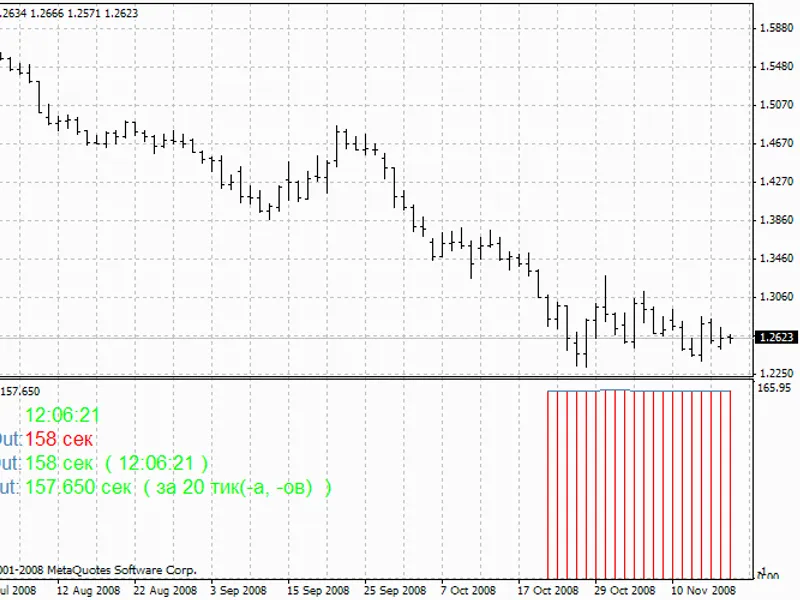
The indicator displays the time between sending a quote by the broker and receiving it by you: the current, maximal and minimal lag.
ATTENTION! For the indicator to work properly, your system clock must be synchronized with the same server as the clock of your broker. Otherwise the usage of the indicator is meaningless.
The indicator will show the time of quote passing between the server of your broker and your terminal. The problems with the connection will be noticed at once (if there are), and also the obligingness of the broker and many other stuff. If the indicator's value is 1-2 seconds, this can be the result of the connection quality and server's workload. But if the indicator shows >5 seconds - you need to pay attention to it (you can ask your broker's technical support, whether it is normal or not). That's not certainly the point, there can be a lot of causes. But at least you'll know that you receive the price by "n" seconds later than the others.
The indicator can not be a subject or a reason to assert a claim to a broker, it just acts as the information source!
External variables:
GMT_shift - Time zone (GMT_shift = 3 for Moscow)
DrawBars - The number of indicator's bars to be drawn (1 tick - 1 bar)
and 4 colors just to be safe ;)