Tool Box
This tool for MetaTrader 4 is specifically engineered to streamline your trading operations. This technical indicator acts as a specialized analysis tool designed to visualize market data. It helps traders identify emerging trends, momentum shifts, and key support or resistance levels by plotting statistical calculations directly onto price charts.
How to Setup and Use Tool Box
1. Installation: Place your file in the MQL/Indicators folder via "Open Data Folder" and restart your terminal.
2. Loading: Find the indicator in the Navigator, drag it onto your chart, and configure the input parameters in the popup window.
3. Customization: Press Ctrl+I to open the indicator list, select your tool, and click "Properties" to change colors, levels, or visual styles.
4. Updating: Replace the old file in the Indicators folder with the new version and restart the platform to apply changes.
Frequently Asked Questions
Q: Why is my indicator not showing? A: Verify the file is in the MQL/Indicators folder, or try right-clicking the "Indicators" tree in the Navigator and clicking "Refresh."
Q: Do custom indicators slow down the platform? A: Too many complex indicators can impact performance; remove unused ones via the "Indicator List" (Ctrl+I).
Q: Can I use MT4 indicators on MT5? A: No, MQL4 and MQL5 are distinct languages; ensure the indicator is compiled specifically for your platform version.
Description & Settings
Changelog:
Information provided:
Button to
change the timeframe
, or to put it in
auto mode.
Button
+
and
-
to change the
lot size
, you can use "P" and "M" shortcut to change lot size.
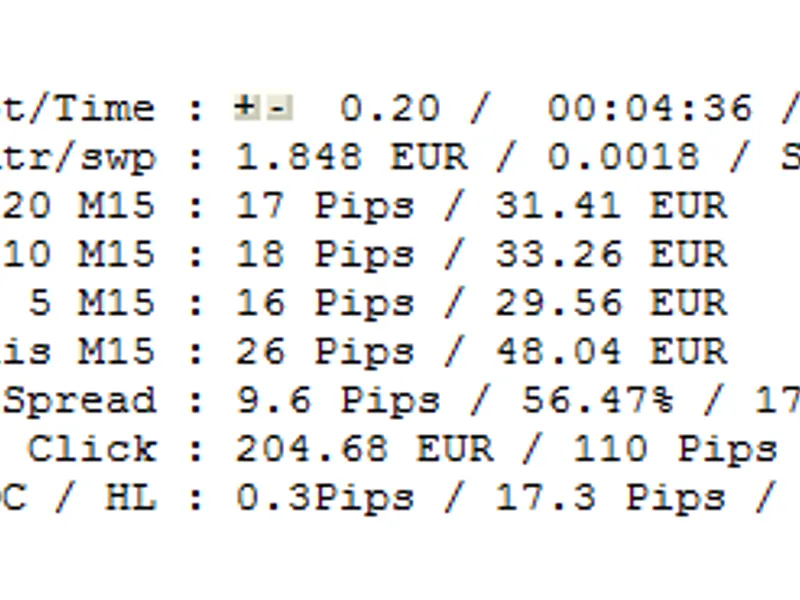
Line 1 :
Lot Size
/
countdown
of the current candle / the price at the
mouse position.
Line 2 :
Pip value
in your currency /
Atr
/
Swap Buy
/
Swap Sell.
Line 3 :
Average pips
in the last
20 period
of the timeframe choose / the same information but in
money.
Line 4 : Same thing but in the last
10 period.
Line 5 : Same thing but in the last
5 period.
Line 6 : Same thing in the
actual candle.
Line 7 :
Spread in Pips
/ the
percentage of spread
over the average 5 period /
spread in your currency.
Line 8 : When you click on the chart you can have in your currency the
value between the actual price and the mouse click
/ idem in
Pips
/ the
mouse click price.
Line 9 : When you move the mouse, you can have the number of
pips between Open and Close
of a candle / the
Pips between High and Low
of the candle / the
datetime
of the candle.In options:
You can activate
the range of
the period choose.
You can activate theEstimated Time of Arrival
of your take profit
.
The parameters are:
Lot:
the lot you usually use.
ActiveRangeLine:
you can view the range of the average range of the last 5 periods. [True/False]
ActiveTakeProfitETA
: give the date and hour of when your take profit could be touch. [True/False]
When you move your mouse on the chart you can see the value in pips between Open and Close [OC] and the Hight and Low [HL].
You can also see the black square, you can move it on your chart, and the text will follow.
When you click on the chart it tells you (in your currency) how much money separate the click and the actual market price (based on the pip value). So you can know before opening a trade the potential of this one, and see if the risk is profitable.
You can see the range of the period based on the average of the last five period. Here it's the blue line.
You can see two trades with a Take Profit, the first take profit can be touch at this date and hour, of course, the hour changes a lot, but it's good to know if you need to wait 1 week or few hours.