











cluster box histogramm - horizontal cross-section of the market
Info
The cluster box histogramm - horizontal cross-section of the market is a Indicator for MetaTrader 4 that general information for each candlestick of any timeframe there is a corresponding amount of ticks that formed it. on forex charts this trait is displayed as volume, although it has no direct relation to the real trade volumes.
Usage
This tool is typically used for enhancing chart analysis and decision making.
Platform
This Indicator works exclusively on MetaTrader 4 (both build 600+ and newer versions).
Setup
Place the downloaded file in MQL4/Indicators folder via File ? Open Data Folder in MetaTrader 4.
How to Install and Use cluster box histogramm - horizontal cross-section of the market
1. Installation: Place your file in the MQL/Indicators folder via "Open Data Folder" and restart your terminal.
2. Loading: Find the indicator in the Navigator, drag it onto your chart, and configure the input parameters in the popup window.
3. Customization: Press Ctrl+I to open the indicator list, select your tool, and click "Properties" to change colors, levels, or visual styles.
4. Updating: Replace the old file in the Indicators folder with the new version and restart the platform to apply changes.
Frequently Asked Questions
Q: Why is my indicator not showing? A: Verify the file is in the MQL/Indicators folder, or try right-clicking the "Indicators" tree in the Navigator and clicking "Refresh."
Q: Do custom indicators slow down the platform? A: Too many complex indicators can impact performance; remove unused ones via the "Indicator List" (Ctrl+I).
Q: Can I use MT4 indicators on MT5? A: No, MQL4 and MQL5 are distinct languages; ensure the indicator is compiled specifically for your platform version.
What this tool does
general information for each candlestick of any timeframe there is a corresponding amount of ticks that formed it.
Typical Use Case
This Indicator excels in automated trading and technical analysis on MetaTrader 4.
Compatible Platform & Setup
This Indicator works on MetaTrader 4. Place the file in the MQL4/Indicators folder and restart the terminal.
Description & Settings
Related: fibonacci confluence zone finder - multi-swing clusters - another powerful indicator for MetaTrader 4 traders.
general information
Also recommended: cluster box - vertical cross-section of the market - similar indicator with strong performance on MetaTrader 4.
for each candlestick of any timeframe there is a corresponding amount of ticks that formed it. on forex charts this trait is displayed as volume, although it has no direct relation to the real trade volumes. however, the tick volume data can be in the same way as the real volume data.the information about the ticks that came before the indicator was attached are taken from the special tick file, which is formed with the help of the . a ready-made tick file can also be taken from the . if the history rendering is not required, then the indicator values will appear in real-time, provided the new ticks arrive.
about the clusterbox_histogramm indicator
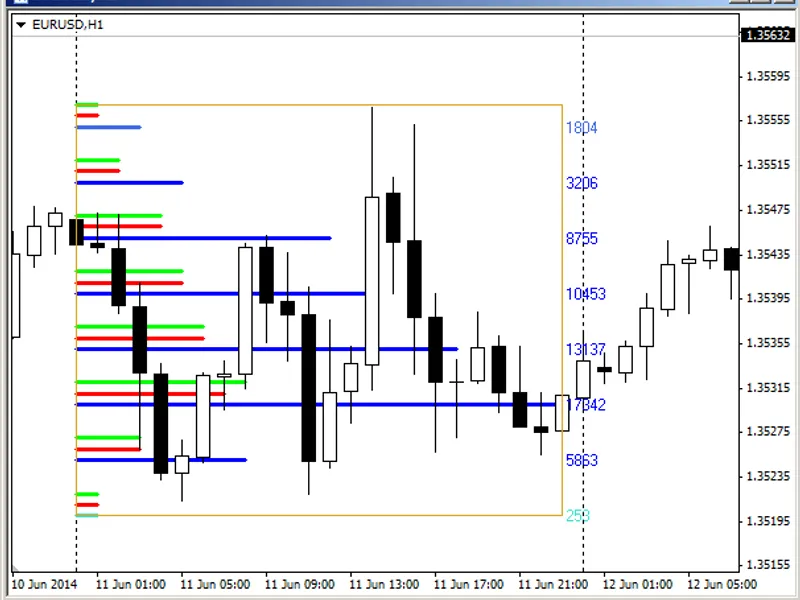
unlike the indicator, that displays the amount of ticks per one cluster within a single candlestick, the clusterbox_histogramm indicator calculates the amount of ticks of one cluster, which combines several candlesticks. that is the specified interval of the candlesticks is considered as a single candlestick split into clusters. for each such cluster, the amount of ticks within it is calculated.
the blue and light blue lines on the chart — total amount of ticks per one cluster. the precise value of this number is displayed to the right of the rectangle, that bounds the data collection interval. the colors of these lines depends on the amount of ticks and values of the setting parameters of the "min. volumes and colors" block.
red and green lines — the amount of ticks per fall and growth prices respectively. set in the "delta of volumes" parameters block.
the data collection interval is set by moving and/or dragging the rectangle.
more detailed information can be found in the article .
You may also like: cluster box day histogramm - horizontal cross-section of the market by days - excellent alternative for indicator users on MetaTrader 4.
Source Code
#property copyright "robotfx"
#property link "https://robotfx.org"
#property description "this code is educational. feel free to use, modify and upgrade as you wish. visit robotfx.org for professional trading tools"
#property strict
#property indicator_chart_window
#property indicator_buffers 1
#define max_volumes_show      5                                                                    //    ,
#define viewrange_startbar    10                                                                   //  ,
struct levelvolumecolor                                                                            //    ,      ..
  {                                                                                                // ..
.......
⚠ Limitations & Risk Warning
- This tool is provided for educational and testing purposes only.
- Past performance does not guarantee future results.
- Trading involves substantial risk of loss. Use on a demo account first.
- Results may vary depending on market conditions, broker, and settings.
- We recommend thorough backtesting and forward testing before using with real funds.