Input Resizer: edit indicator and EA settings comfortably
This tool for MetaTrader 4 is specifically engineered to streamline your trading operations. This Expert Advisor serves as automated trading software. It is utilized to monitor financial markets and execute trades based on predefined algorithmic rules, enabling precise position management without the need for constant manual oversight.
How to Setup and Use Input Resizer: edit indicator and EA settings comfortably
1. Installation: Open the "File" menu, select "Open Data Folder," navigate to MQL/Experts, paste your file, and restart the terminal.
2. Activation: Drag the EA from the Navigator onto a chart, ensure "Allow live trading" is checked in the Common tab, and verify the AutoTrading button is green.
3. Optimization: Right-click your chart, choose "Expert List," click "Properties" to adjust inputs, and save your preferred setup as a set file for future use.
4. Maintenance: Regularly check the "Experts" tab in the terminal window to monitor trade logs and potential execution errors.
Frequently Asked Questions
Q: Why is my EA not opening trades? A: Check the "AutoTrading" button, ensure "Allow live trading" is enabled, and verify your broker allows automated trading on your account type.
Q: Can I run multiple EAs on one chart? A: No, each chart can only host one active EA; however, you can open multiple charts for different currency pairs to run several EAs.
Q: What does the "smiley face" icon mean? A: A smiley face in the top-right corner of the chart indicates the EA is successfully running; a frowny face means it is disabled.
Description & Settings
Attached are two variants - indicator and EA, both doing the same thing. Choose a variant and use it;
don't use both indicator and EA at once.
Indicator variant - InputResizer.mq4:
The indicator depends on incoming ticks, so if you choose it for whatever reason, you will have to wait for a tick until the indicator spots the window you have opened and manages it, so it's good to attach it to a chart (pair) that receives ticks frequently - EURJPY and GBPJPY are good choices.
EA variant - InputResizerEA.mq4:
The advantage of using the EA is clear; it runs in loop mode and doesn't depend on ticks. It checks for windows every 300 msec (default setting) so you will never have to wait. However, if you start your MT4 when the market is closed, you have to switch the
WeekendMode
(see below) on, or use a tick generator utility or script. There's one little disadvantage in using the EA. I recommend using this variant, but it occupies a chart you can't use for another EA. It's a good idea to attach it to a dedicated chart (M1-W1, pair doesn't matter), minimize this chart and not use it for other purposes.
Setup:
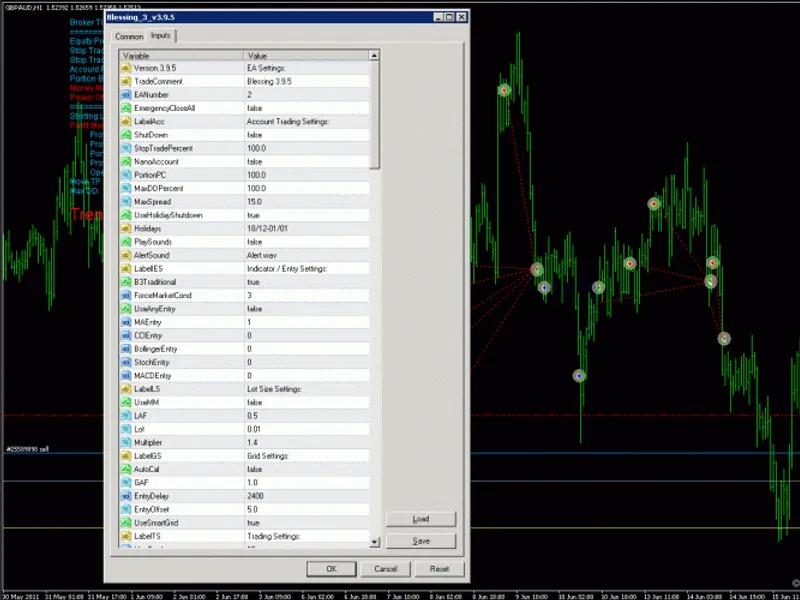
Per default (set as above), InputResizer will place and resize every input window on its first appearance to specified coordinates (in pixels, relative to upper left screen corner). Then, if the input window (distinguished by EA/indicator name) re-appears (on any chart/platform), position/size at last window close will be applied.
If RememberSize=false
, all windows will be opened with
InitCustom
(if true) coordinates, maximized if
InitMaximized=true
(InitMaximized overrides InitCustom), or at default position and size if both InitCustom and InitMaximized are false.
If RememberSize=true
, the above is applied only for the first time a window appears. Then, coordinates are stored at each window close and re-applied next time. Stored coordinates override InitCustom and InitMaximized.
DLLs must be allowed for InputResizer to work. Otherwise, you will receive an alert message.
If you open an input window of an indicator/EA for the first time, it will not resize until you select the input tab.
Coordinates are stored into global variables; they are persistent until you delete them. You can do this anytime by pressing F3 and deleting all global variables starting with 'iRes'.